GA4 Outbound Clicks Not Showing? Test the Link, Event and Report
A practical diagnostic for referral links: separate missing click collection from report setup, avoid duplicate counts, and keep outbound clicks separate from confirmed revenue.
Your referral button opens the right website, but GA4 shows no clicks. Adding another tracking script immediately can turn one uncertain measurement into two conflicting ones.
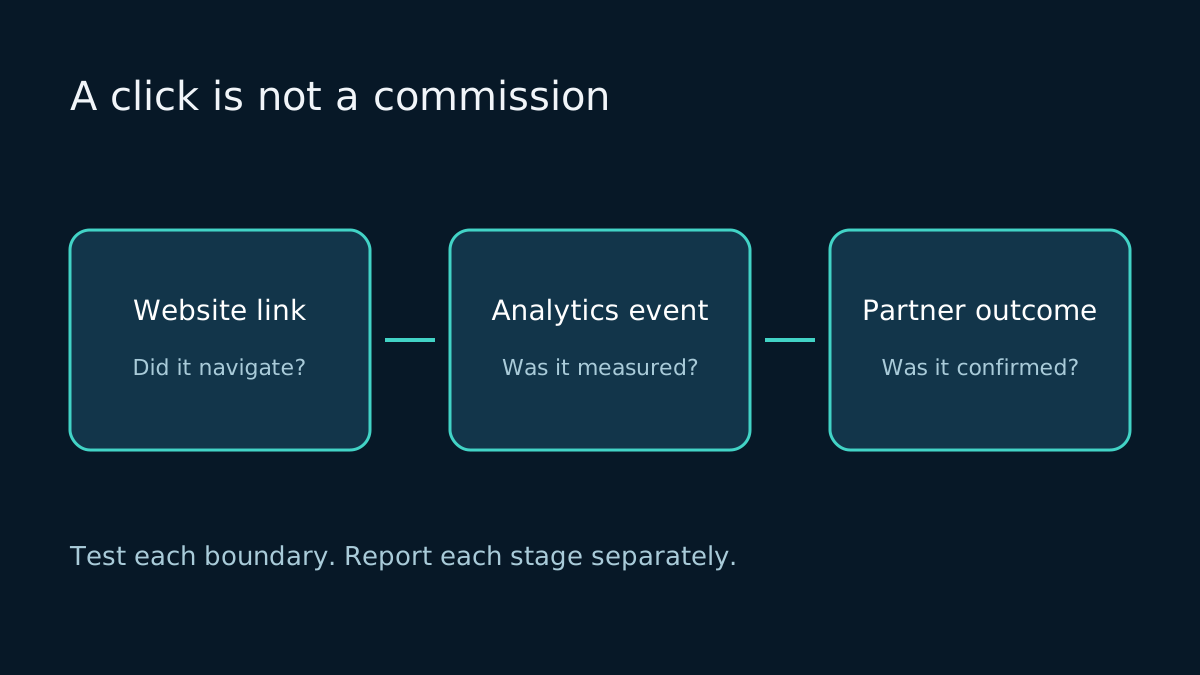
First separate three checks: did the link navigate, did Analytics receive an event, and does the report display it? None of those proves that the visitor became a client or earned a referral reward.
This guide is for a website with a working GA4 web stream. It uses an ordinary external link as the baseline, then covers custom referral events. It does not require changing the destination or adding personal information to the referral URL.
Write a measurement contract before changing code
Use this small record for one link. Replace the illustrative values with your own implementation:
| Field | Example or decision |
|---|---|
| Page under test | /blog/example-guide |
| Link placement | End-of-article button |
| Actual link destination | An approved public partner URL |
| Expected event | Built-in click, or a deliberately chosen custom event |
| Expected context | Destination domain and originating page |
| Test time and environment | Record timezone; staging or production |
| Success means | One observed event for one deliberate test click |
| Success does not mean | A signup, qualified client or commission |
Keep test events in a separate test property where practical. If you must validate production, record the exact test window so a future report does not mistake your own click for new demand. Do not repeatedly click a referral link to inflate the graph.
1. Inspect the link rather than its appearance
A button-shaped element may be a normal link, an internal redirect, or JavaScript that opens another page. Inspect its actual destination before choosing the tracking method.
Google's outbound-click tutorial describes measurement for links that leave the current domain. This includes links styled as buttons. Domains configured for cross-domain measurement are excluded from ordinary outbound-click events.
For diagnosis, compare these cases:
- Direct external link: start with enhanced measurement.
- Internal
/go/partnerredirect: the visible link points to your own site. Do not assume it behaves like a direct external link; test the implemented path. - Script-only navigation: inspect the handler and validate whether your chosen tracking actually runs.
- Cross-domain destination: review the configuration before declaring a missing outbound event a defect.
Do not remove a legitimate cross-domain setup simply to make the click counter rise. Also avoid rewriting an authorized referral URL merely to simplify a report: attribution rules belong to the partner program.
2. Check the right stream and collection option
In GA4, open Admin → Data streams, then the production web stream. Check Enhanced measurement → Outbound clicks. Verify the property and stream rather than assuming the account you last opened is correct. Changing these settings requires the appropriate permission.
The built-in event is named click. Its link parameters include link_domain, link_url and outbound. Google's enhanced measurement reference documents the full set and the Google tag's automatic event-detection settings.
A custom name such as partner_referral_click will not appear just because enhanced measurement is enabled. It needs its own implementation. Conversely, a built-in click does not have to be renamed before it can be useful.
Inspect existing tracking before adding anything: a component handler, a global click listener and a Tag Manager tag may all be trying to describe the same action. Choose which event is the source of truth for the business report.
3. Verify collection before debugging a historical report
Use Google's DebugView instructions to enable debug mode for your own device, for example through Tag Assistant. Select that device, open the exact page, and make one deliberate test click. Inspect the event and its parameters.
Record whether the event exists, its name, destination and page context. A name alone is not enough: the wrong link could be firing it. Test a second placement only after the first result is understood.
Consent and privacy controls can prevent events appearing in DebugView. Respect that state; do not bypass a visitor's refusal to make a diagnostic pass. Keep site navigation working when measurement is unavailable.
| Observation | Investigate next |
|---|---|
| No page activity from the test device | Stream ID, tag loading, debug setup and consent state |
| Page activity exists, but the link event does not | Actual link target, outbound setting, custom handler or cross-domain setup |
| One click produces two identical custom events | Duplicate listeners, duplicate tags or repeated handler execution |
| Correct event exists, but a report is empty | Report dates, event filter, dimensions and processing status |
| Click exists, but partner shows no outcome | Partner eligibility and attribution evidence, not another GA4 tag |
These are diagnostic branches, not automatic diagnoses. Save the observation before making one targeted change, then repeat the same test.
4. Build a report for the event you actually collected
For built-in outbound clicks, create an exploration with Link domain, Link URL and Outbound as dimensions, and Event count as the metric. Google's walkthrough shows this setup. Scope the report to the intended event and destination, and verify its date range.
Custom parameters are a separate issue. If your own event sends partner_name or placement, register the corresponding event-scoped custom dimensions before relying on them in explorations. Seeing a parameter in DebugView is not the same as making it available in a normal report. See Google's event-parameter guide.
Do not add the built-in click count to a custom referral-click count and label the sum unique prospects. Both may describe the same action, and one person may click repeatedly. Select one definition and keep it consistent across reports.
5. Keep collection free of personal data
Before enabling broad URL collection or custom parameters, inspect what those fields can contain. Avoid email addresses, phone numbers, form answers, access tokens or customer identifiers in tracking values. Prefer a fixed label such as footer_cta over user-entered text.
Google's PII guidance covers accidental disclosure through URLs, page titles and other fields. A tracking implementation is not safe merely because the parameter has an innocent name. Review its actual values, including error and logged-in flows.
Report clicks and revenue on separate lines
Use a short evidence ledger instead of a single ambiguous conversion number:
| Stage | Evidence to retain | What it cannot establish alone |
|---|---|---|
| Measured outbound click | Event definition, page, date range and known test activity | Partner signup or qualified client |
| Partner-confirmed outcome | Program dashboard or an authorized confirmation | Final payment if approval remains pending |
| Confirmed reward/payment | Approved reward record or payment confirmation | That every earlier click was uniquely attributable |
This ledger is a reporting recommendation, not a promise that every partner exposes every stage. If the partner provides no reliable downstream data, say so. Marking a click as a key event in your own reporting still does not turn it into paid revenue.
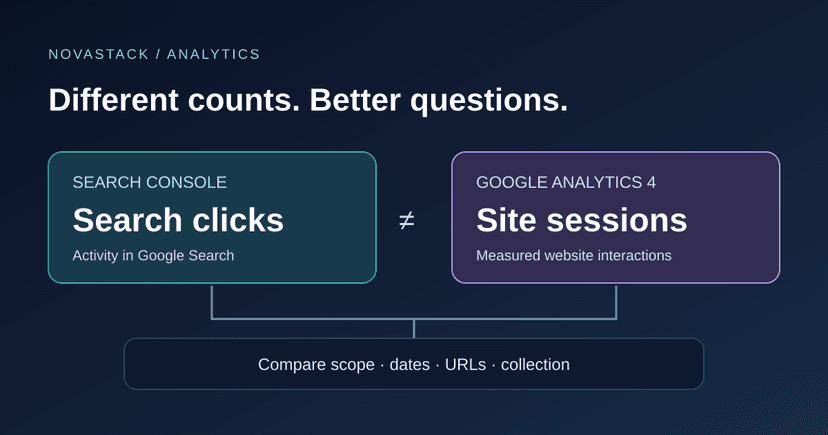
For search acquisition, use the separate Search Console clicks versus GA4 sessions checklist. Search clicks, website sessions, outbound clicks and paid referrals answer different questions. The useful outcome of this investigation is a trustworthy boundary between them, not four numbers forced to match.